
Comikaze - Create Comics Manga
Appricott Dijital Teknoliji ve Yazilim A.S.Comics
3.914.00 Reviews
- Version
- 1.0.7
- Installs
- 10.00K
- Age Rating
- Everyone
Screenshots
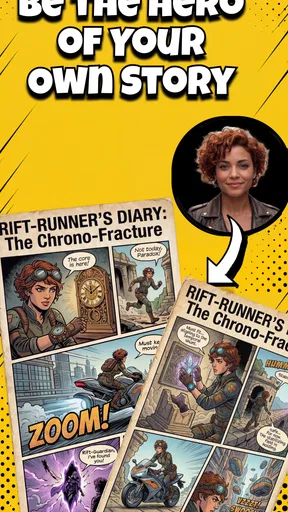
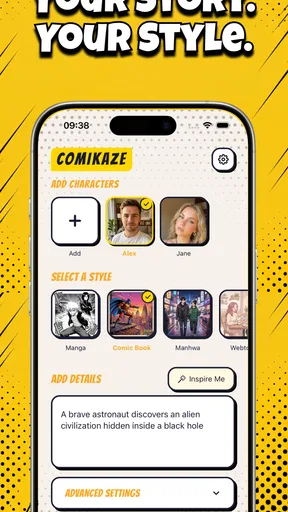
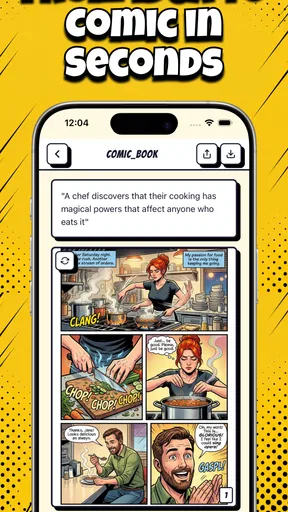
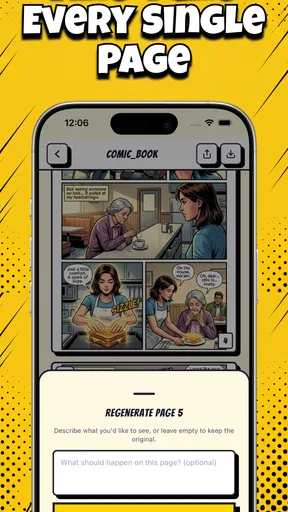
Our Review of Comikaze - Create Comics Manga
 Analysis by Appyee
I approached Comikaze as a practical comic-making app rather than a full desktop publishing suite. Its focus is clear: helping you turn an idea into a manga or comic page on a mobile device without needing a complicated creative setup. After spending time with it, I found the best experience comes from treating it as a quick visual storytelling tool—something for sketching a scene, arranging a short sequence, or preparing a shareable comic when inspiration arrives away from a computer.
The app is listed in the Comics category and is free to install, with optional purchases ranging from $5.99 to $59.99 per item. That makes the first step easy: you can explore the workflow before deciding whether the paid elements suit you. It is aimed at Everyone, and the developer is Appricott Dijital Teknoliji ve Yazilim A.S. The current release is version 1.0.7, and it runs on Android 7.0 or later, so compatibility should cover many older devices as well as newer phones.
Starting with a repeatable comic workflow
My most comfortable way to use Comikaze was to begin with the story beat, not the decoration. I first decided what a page needed to communicate, then built the visual arrangement around that idea. This sounds obvious, but it prevents a common problem with mobile comic tools: spending too much time choosing visual elements before knowing what the reader is supposed to notice.
For a short scene, I recommend working from a small outline. Write down the setting, the characters involved, the action, and the final reaction. Then create the page in that order. The first panel establishes where the reader is, the next shows the important movement or exchange, and the last gives the scene a conclusion. Even when you are making a humorous one-page comic, this simple rhythm makes the result feel intentional rather than like a collection of unrelated images.
Comikaze is particularly approachable for users who want to experiment with manga-style storytelling but do not want to begin with a drawing course or a large illustration program. I could see it being useful for a student planning a visual presentation, a writer testing dialogue, or a casual creator making a short comic for friends. It also works well as a thumbnailing space: you can test whether a scene reads clearly before investing time in polished artwork elsewhere.
One useful habit is to keep the first version deliberately plain. Use fewer panels, shorter dialogue, and a clear focal point. Mobile screens encourage overfilling because there is always another visual choice to make. A restrained first pass gives you a better sense of whether the story works. If the page is confusing in a basic form, adding more decoration rarely fixes the underlying problem.
The app’s free starting point is important here. You can find out whether the editing style suits your hands and whether the available creative approach matches your expectations without committing money immediately. That is a better reason to try it than assuming a free app will replace a professional desktop editor. I would describe it as an accessible creation tool, not an all-purpose production environment.
What a normal session feels like
A typical session can be short and focused. I would open the app with one specific goal, such as arranging a conversation, testing a character reaction, or turning a rough idea into a readable page. That approach keeps the interface from becoming a distraction. Instead of browsing every option, I would make the basic composition first and only then refine the presentation.
This also makes Comikaze suitable for interrupted work. If you have a few minutes during a commute, between classes, or while waiting for an appointment, you can use the time to develop one scene rather than trying to complete an entire comic. The app feels more useful when treated as a place for steady progress instead of a tool that must produce a finished series in one sitting.
For a realistic everyday example, imagine noticing a funny exchange at lunch and wanting to turn it into a four-panel comic. I would note the setup, exaggerate the misunderstanding, and reserve the final panel for the punchline. In Comikaze, the practical challenge is not simply adding content; it is keeping the dialogue readable and the visual order obvious on a phone-sized canvas. Building the page in small stages helps avoid a crowded result.
Another good use is planning before drawing. A writer can arrange a scene to check pacing, while an illustrator can use the page as a rough storyboard. In that role, the app does not need to replace a drawing tablet or desktop software. It only needs to answer a valuable question: does the sequence make sense when viewed as a comic?
Settings and choices worth checking early
Experienced users usually save time by checking the working setup before creating several pages. In Comikaze, I would pay attention to the available project and editing choices at the beginning rather than changing them repeatedly later. The exact importance of each option depends on the kind of comic you are making, but the principle is consistent: decide on a visual direction before producing a large batch of pages.
For manga-inspired work, consistency matters more than having a huge variety of styles. Choose a limited visual language for a scene and stay with it. If characters, backgrounds, text treatment, or panel proportions change without a storytelling reason, the comic can feel assembled rather than authored. A repeatable setup makes later pages faster and gives the whole project a more coherent identity.
I would also check how the app handles text before writing long dialogue. Mobile comic layouts have limited space, and a sentence that looks acceptable while editing may dominate the finished panel. Short lines usually read better than dense paragraphs. If a character needs to explain something complicated, split the information across panels or rewrite it as a more natural exchange.
That is one of the less obvious trade-offs of a phone-based comic workflow: visual convenience can tempt you to write more than the page can comfortably carry. I found that editing the words after placing them is often more effective than writing a complete script first. The panel itself shows where a line feels too heavy or where a pause needs to become a separate beat.
It is also worth deciding whether you are making a single image, a short sequence, or a continuing project. A one-off joke can prioritize speed. A series needs repeatable character placement, similar pacing, and a method for naming or organizing work. Even without adding complexity, thinking in terms of a small production routine makes the app easier to manage.
Because in-app purchases are available, I would explore the free workflow carefully before buying anything. The sensible question is not whether an additional option sounds attractive, but whether it solves a problem you actually encounter. If your pages are already readable and expressive, purchasing more creative material may not improve the storytelling. If a particular limitation repeatedly interrupts your process, then a paid item may be easier to justify.
Shortcuts in thinking rather than hidden tricks
I did not approach Comikaze as an app that requires secret commands or complicated technical tricks. The fastest gains come from repeatable habits. Prepare a tiny script, reuse a consistent page structure, and make decisions in batches. For example, decide the tone of a scene before arranging its visuals, then review all dialogue together instead of stopping after every line.
Another efficient pattern is to separate blocking from polishing. First place the main characters, actions, and text. Then review the page from a reader’s perspective. Only after the sequence is understandable should you spend time improving appearance. This prevents a polished first panel from receiving more attention than the ending, even though the final panel may carry the joke or emotional turn.
I also recommend reviewing the page at normal reading speed. Do not inspect every element indefinitely while editing. Look at the opening panel, move through the sequence in order, and ask where your eye goes next. If you have to explain the intended order aloud, the composition probably needs simplification. This is a useful discipline for any mobile comic editor, but it is especially valuable when the screen is small and the temptation to zoom in is strong.
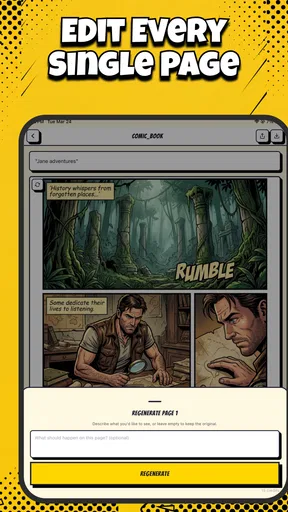
For creators working on several related pages, a style note can save time. Keep a short written reminder of the tone, recurring character traits, and preferred dialogue length. Comikaze can then serve as the place where you apply that plan rather than the place where you reinvent it every time. The benefit is not a hidden feature; it is reducing the number of decisions made inside the app.
There is also a practical sharing habit worth adopting: finish a page, pause, and inspect it as someone unfamiliar with the idea would. A creator knows the intended joke and may overlook an unclear expression or missing transition. A short break makes those problems easier to see. This is particularly important for comics made quickly, where the creator’s imagination fills in details that are not actually visible.
Where the mobile approach reaches its limits
Comikaze is not the right choice for everyone. If you need highly precise illustration control, extensive layer management, professional print preparation, or a long-form publishing workflow, a dedicated drawing or layout application will likely be better. Those tools are slower to learn, but they offer the control that serious production demands.
I would also hesitate to use it as the only tool for a large graphic novel unless the project is intentionally simple. Repeated pages create organizational demands that are easy to ignore at the beginning. Character consistency, revisions, backups, and final export requirements become more important as the project grows. A lightweight mobile workflow can help with planning, but it may not be enough for every later stage.
The app’s rating sits at a 3.9 average from around 1.2 thousand ratings, with 14 written reviews shown. I read that as a reason to keep expectations realistic rather than as a verdict on every user’s experience. It suggests that the app appeals to a meaningful group while still leaving room for different reactions to its interface and creative limits. Its install count is over 10 thousand, which places it among smaller, more specialized tools rather than the most established mobile creative platforms.
The age rating of Everyone makes it approachable for families, younger creators, classrooms, and casual experimentation. Adults should still guide children toward appropriate story themes when sharing work publicly, but the app itself is positioned for broad use. That broad accessibility is a strength for learning basic visual storytelling, although advanced creators may find the same simplicity restrictive.
Device compatibility is another practical consideration. Since the minimum requirement is Android 7.0, people using older phones may still be able to try it. Performance and comfort can vary with screen size and hardware, so I would test the editing experience on the actual device you plan to use. A workflow that feels comfortable on a large display may feel cramped on a smaller phone, especially when reviewing text and panel spacing.
Who will get the most from it
I would recommend Comikaze to beginners who want a direct route into comic composition, writers who need visual storyboards, and casual creators who value convenience over exhaustive control. It is also a good fit for someone who wants to make occasional manga-style pages without learning a large professional program first.
Teachers and parents may find the simple concept useful for creative exercises. A student can turn a short story into panels, visualize dialogue, or explain a process through sequential images. The activity encourages decisions about order, emphasis, and pacing, which are valuable skills even when the final comic is informal.
It is less suitable for people who already have a precise digital art workflow and need fine control over every mark. If your work depends on detailed brush engines, complex compositing, or exact print dimensions, moving between Comikaze and a more advanced editor may create extra steps. In that situation, I would use it only for quick concepts, not as the central production tool.
I would also skip it if your main goal is simply to read comics. This is a creation-focused app, and its value comes from making pages rather than consuming a library. Likewise, users looking for a social publishing community should not assume that a comic-making tool automatically provides the same experience as a dedicated publishing platform.
My verdict after building a routine
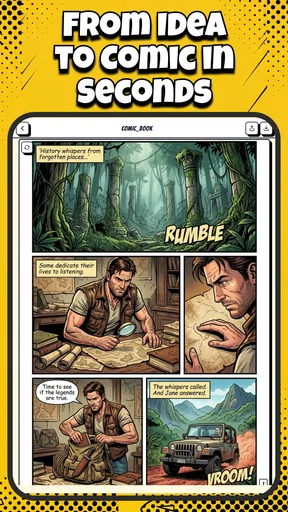
After using it with a repeatable process, I see Comikaze as a friendly entry point for mobile comic creation. Its strongest quality is that it lowers the distance between an idea and a visible page. The app encourages you to think in scenes, panels, and readable moments without forcing you to begin with a complicated professional setup.
The best results come from combining simple app choices with disciplined storytelling habits. Keep the first draft small, check text early, review the page in reading order, and delay decoration until the story works. Those habits reveal what the app does well and prevent its mobile limitations from becoming frustrating surprises.
The free installation makes experimentation straightforward, while the optional purchases mean regular users should decide carefully which extras genuinely improve their workflow. I would not buy anything simply because a larger toolkit feels reassuring. First make a few complete pages, identify the exact point where you slow down, and then judge whether a purchase addresses that issue.
For me, Comikaze succeeds as a compact comic and manga sketching companion, especially for short projects, classroom exercises, visual jokes, and early story planning. It does not replace a full illustration or publishing suite, and experienced artists should understand that trade-off before committing to a larger project. But if you want to turn a scene into a readable comic on an Android device and prefer a gentler learning curve, Comikaze is worth trying. I would start with one short page, build a consistent workflow, and let the app prove its usefulness through the stories you can actually finish.
Verdict
Strengths of Comikaze - Create Comics Manga
- Simple tools make it easy for beginners to create comic panels.
- Supports manga-style layouts and storytelling formats.
- Character customization helps personalize each scene.
- Useful for planning visual stories without drawing skills.
- Export options make sharing finished comics convenient.
Limitations of Comikaze - Create Comics Manga
- Advanced editing controls may feel limited for experienced artists.
- Some assets and features may require in-app purchases.
- Large projects can become time-consuming to organize.
- The app may offer fewer options than professional art software.
- Performance can vary on older or less powerful devices.
Other Releases by Appricott Dijital Teknoliji ve Yazilim A.S.
View All
World Monitor: GlobeAlert
News & Magazines4.7
Similar Picks in This Category
View All
WEBTOON: Manga, Comics, Manhwa
NAVER WEBTOON4.6

MangaToon: Comic & Manga
MangaToon4.3

네이버 웹툰 - Naver Webtoon
NAVER WEBTOON4.3

Tapas – Comics and Novels
Tapas Entertainment Inc.4.2

Lezhin Comics - Daily Releases
LEZHIN ENTERTAINMENT3.3

WebComics - Webtoon & Manga
WEBCOMICS HOLDINGS HK LIMITED4.4
Frequently Asked Questions
What is Comikaze - Create Comics Manga?
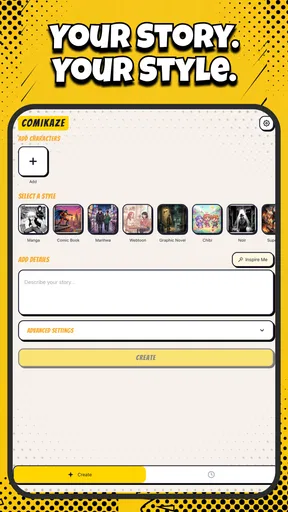
Comikaze - Create Comics Manga is a creative app designed for users who want to make comic strips, manga-style stories, and illustrated scenes on a mobile device. It typically combines backgrounds, characters, expressions, props, text bubbles, and other visual elements so you can build panels without drawing everything from scratch. It can be useful for beginners, casual creators, storytellers, and anyone experimenting with visual narratives.
Do I need drawing skills to use Comikaze?
No advanced drawing experience is generally required to start creating with Comikaze. The app is intended to simplify comic production through ready-made characters, backgrounds, poses, objects, and dialogue tools. You can arrange the available elements, customize scenes, and add your own story text. However, the amount of creative control may depend on the included assets and editing options, so experienced artists may find it more suitable for quick concepts than highly detailed professional illustration.
Can I create manga or comics in different formats?
Comikaze is mainly focused on helping users assemble comic-style stories using panels, characters, backgrounds, and speech bubbles. Depending on the version and device, you may be able to adjust layouts, create multiple scenes, and produce stories with a manga-inspired appearance. Before downloading, check the current app description for supported export formats, image sizes, page limits, and whether it supports vertical stories, traditional pages, or social-media-friendly comic layouts.
Is Comikaze free to download and use?
The app may be available as a free download, but some features, asset collections, export options, or advanced tools can require in-app purchases or a premium version. Availability and pricing may also differ between Android and iOS. We recommend reviewing the store listing carefully before installing, especially the sections covering subscriptions, advertisements, locked content, and trial terms. This will help you understand what is included without payment and avoid unexpected charges.
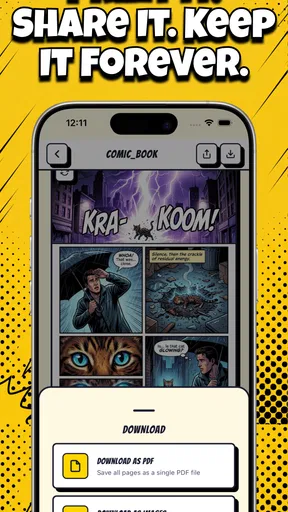
Can I save, export, or share comics created in Comikaze?
Comikaze is intended for creating visual stories that can be saved and shared, although the exact options depend on the current app version and platform. Look for tools that allow you to save projects, export finished panels as images, or share them through other applications and social networks. It is also worth checking whether exported content includes watermarks, whether high-resolution output is restricted, and whether your projects are stored locally or synchronized online.
